

Joomla 1.5 installs with three pre-installed templates. These templates are good as a starting point when learning Joomla. Still, if you want to create a Joomla website, you will want to look at other templates as well.
There are a lot of templates out there. Both free and commercial. I usually recommend spending a few dollars on a template from a professional provider if you're creating a business website. You will get those dollars back in less frustrations, better search engine rankings and easier customization. The support is also better (not always, though).
This tutorial will show you how to install a Joomla template and how to get started customizing it.
Downloading the Joomla template
Joomla templates are provided as ZIP files.
Download the file from the provider, but don't unzip the file before installing.
Installing the Joomla template
To install the Joomla template, follow this procedure:
1. Log in to your Joomla administrator
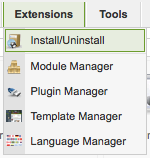
2. Click the top menu link 'Extensions' -> 'Install/uninstall'
3. Under 'Upload Package File', click 'Browse' to choose the zip file you downloaded from the template provider
4. Click 'Upload File & Install'. The template will now be installed.
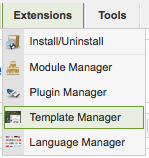
5. Click 'Extensions' -> 'Template Manager'
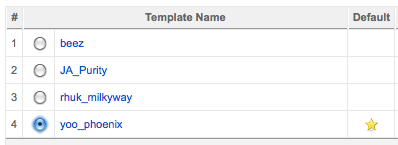
6. To set the uploaded template to be the default template for the site, click the radio button to the left of the template name.
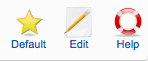
7. Click the 'Default' button in the top right corner of the page.
The template is now used as default on all pages on the site. You can now start customizing the template.
Customizing a Joomla template
I won't go into details about how to customize a template in this post. However, you can edit both the HTML of the template itself, and the CSS (stylesheets) used by the template
I recommend you read my tutorial concerning Joomla CSS for beginners before messing too much with the template CSS.
To access the customization options of a Joomla template, click the name of the template in the list.
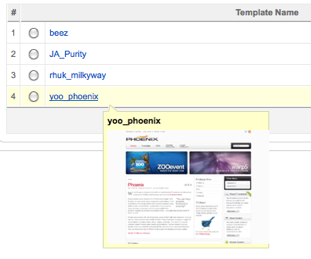
You are now presented with the options available for the particular template. There will be different options for each template, as this is something the template developer may include himself.
Some templates have just a few options, while others will present a lot of alternatives. This is oftentimes the difference between a free and a professionally developed template. Most commercial templates have a number of settings to control the width of the template and columns, how the modules are presented, different styles and a lot more.
To see the code for the template and CSS, use the buttons:

I will look more into the mysteries of Joomla templates in another post.
Joomla template providers I recommend
If you're uncertain where to get quality Joomla templates, I recommend the following Joomla template providers:
- JoomlaBamboo
Clean code and elegantly designed templates. - RocketTheme
Advanced framework (Gantry) with loads of functionality and third-party support. - YooTheme
Elegant and well documented templates. - JoomlaPraise
Clean and fast code. Good third-party support